Using PaperCut

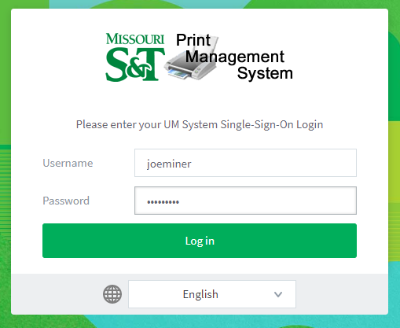
  1. Click on Details… on the PaperCut box on the desktop, or go to papercut.mst.edu and login using your university username (SSO) and password.

  2. The Print Management System tools are displayed in the left menu.
  • In the Summary section, you can check the number of pages and jobs you’ve printed and to see your current account balance.

     
  • The Transfers section allows you to transfer quota to other S&T personnel. You may follow the steps to transfer quota here.

     
  • The Transaction History section gives you a listed view of all the print jobs you have sent out with how much it cost and what day it was done and if you have done any quota transfers.

     
  • The Recent Print Jobs section allows you to view your print history. The tool shows you the name of the document you printed, the date and time, and the name of the printer on which the job was printed. You can also find information about an individual print job, such as whether or not it was printed in color or if the print job was double-sided (duplex print).